
By Daily Carry Lab. Primary documentation checked October 15, 2026 (Pacific).
Affiliate disclosure: As an Amazon Associate, Daily Carry Lab earns from qualifying purchases. Retailer links may earn a commission at no extra cost to you.
Research disclosure: We researched manufacturer documentation and exact model identities. We have not tested print quality, adhesive life, battery endurance, app reliability or packed durability. No DCL ratings or test results are assigned.
For labeling a travel cable kit or bag organizer, decide where you want to type before comparing templates. A phone-controlled printer can use your phone’s screen and input tools, but also needs a compatible app and connection. A handheld keyboard avoids that particular dependency and adds its own controls to pack.
We selected the white Brother P-touch CUBE PT-P300BT and Brother PT-H110 because they document those different workflows while using the TZe tape family. They are narrow tape label makers, not substitutes for photograph printers or large shipping-label machines. We do not claim a market-wide best printer or that either is necessary for occasional labeling; a handwritten tag may already meet the job.
Compare the exact workflow
| Model | How you create the label | Tape choice | Power arrangement and drawback |
|---|---|---|---|
| PT-P300BT CUBE, white | Keyboard-less; Bluetooth phone/tablet workflow using Brother’s Apple/Android app | TZe tapes up to 12mm wide | Six AAA batteries, not included, or included AC adapter in the documented US package; phone/app becomes part of the kit |
| PT-H110 | Built-in QWERTY keyboard and graphical display | TZe widths listed as 3.5, 6, 9 and 12mm | Six AAA batteries or optional AC adapter, each sold separately; larger handheld keyboard layout to carry |
Sources: Brother PT-P300BT specifications and PT-H110 specifications. Do not transfer the CUBE’s included AC-adapter statement to the H110, or a CUBE Plus feature to this CUBE. The exact model and regional package matter more than a family name.
For a phone-led workflow, check that the app can be installed on the actual device you carry and that its connection permissions work before travel. Brother’s current CUBE page names P-touch Design&Print2 for Apple and Android. The US CUBE manual documents the Bluetooth connection and power setup. A phone being Bluetooth-capable does not by itself establish current app/OS compatibility. We have not verified desktop printing for this model and do not recommend buying it on that assumption.
For an app-independent kit, H110’s keyboard and preview display are the documented alternative. That does not establish that its layout is more comfortable or faster; we have not compared typing or labeling speed. The decision is whether the extra handheld controls are preferable to carrying and configuring the phone workflow.
Choose the tape for the object
| Labeling job | What to verify | Limit to retain |
|---|---|---|
| Small cable identifiers | Tape family, width, suitable cable-label material and finished text size | A cable-label template alone does not establish adhesion to every jacket or diameter |
| Pouch, case or drawer label | Surface, available flat area, contrast and removability you need | TZe family compatibility is not a guarantee against residue or peeling |
| Temporary travel organization | Whether a handwritten/removable tag is enough | Do not assume a permanent adhesive is the right choice |
| Wider multi-line identifier | Required tape width and printable area | A 12mm tape limit is not evidence of support for wider CUBE-family tapes |
Brother lists several tape types for the CUBE, including flexible identification and extra-strength adhesive options. Those names help narrow the consumable search; they do not establish a tested outcome on your cables, bags or cases. Match an exact tape’s documentation to the surface rather than repeating a generic weatherproof or dishwasher-safe claim. We have not tested outdoor use, heat, abrasion, wash cycles or removal damage.
Neither the app’s font count nor the number of stored templates tells you whether a short label will remain readable at your chosen width. Lay out the longest likely identifier first. Check its actual preview, margins and line breaks, then price the tape needed to repeat that job. This is a planning check, not a measured tape-efficiency ranking.
Budget for consumables and power
| Option | Exact delivered price evidence, October 15 | Extra items and drawbacks |
|---|---|---|
| Existing handwritten tag system | New printer spending may be unnecessary | Manual writing and attachment still take time |
| White PT-P300BT CUBE | Current exact checkout total unknown | Replacement TZe tape and AAA batteries; app/device compatibility |
| PT-H110 | Current exact checkout total unknown | Replacement tape, six AAA batteries or optional AC adapter; keyboard bulk |
Both documented US packages include a 12mm black-on-white starter tape; a starter roll is not an unlimited supply of your preferred cable-label stock. Compare replacement tape cost and package contents at checkout. The CUBE manual allows fully charged AAA Ni-MH batteries as an alternative to alkaline; that is battery-use guidance, not a claim that the printer recharges them. Confirm a separate compatible charging arrangement if using rechargeable cells.
For occasional kit labels, choose H110 if standalone input is the priority, or investigate the white CUBE if phone input suits the way you already organize text. Keep the printer purchase separate from choosing a tech pouch: labeling can identify contents, but does not establish packed fit, protection or quicker retrieval.
Repeated labels need an explicit final feed and cut
When making several cable identifiers with the white PT-P300BT CUBE, a leading blank on every label can be a settings decision. The US CUBE manual, page 9, checked visually October 22, 2026, gives different controls for the two apps. This is model-specific guidance, not a feature claim for H110 or CUBE Plus.
| App or symptom | Documented setting or check | Tradeoff to plan for |
|---|---|---|
| P-touch Design&Print 2; repeated leading blank | Set Cut the last label OFF and Special Tape OFF | Finish the final label manually |
| iPrint&Label; repeated leading blank | Enable Chain Printing | Same final feed/cut responsibility |
| Last label stops before fully emerging | Press Power twice to feed, then use the tape cutter lever | Check whether this is the selected cut setting before calling it a jam |
| Tape feeds incorrectly or sticks | Check the tape path under its guides | Do not operate the cutter while printing |
Brother describes preventing the repeated leading blank on the second and subsequent labels, not eliminating every margin. We have not measured the amount of tape saved. Do not price a replacement roll using an assumed percentage reduction, and do not cut while a label is still printing.
For a batch of cable names, plan the whole sequence: choose the app’s documented cut settings, print the required labels, and feed/cut the final one. The manual’s final manual step is part of the workflow, not evidence that the printer has an automatic cutter. Follow current app help if its controls differ from the manual; do not assume the app name establishes support on your phone.
This adds a consumable-use consideration to the phone-versus-keyboard decision above. Replacement-tape prices, label yield and time savings remain unknown. We have not tested feed recovery, cut quality or adhesive performance. Preserve the exact white US CUBE package decision; chain settings do not add batteries, tape or another app license to a retailer offer.
Check the CUBE print head before buying another roll or printer
If labels emerge but have missing text, distinguish print quality from the power and pairing problems below. Brother’s PT-P300BT US guide, PDF page 6, checked visually October 27, 2026, says dirt on the print head can cause blank lines, faint type or missing characters. This is a documented possible cause, not our diagnosis of your machine.
| Observation | Documented route | Purchase implication |
|---|---|---|
| Blank lines or missing characters | Consult the print-head maintenance instructions | Do not assume the whole printer needs replacement |
| Considering a cleaning consumable | Brother names TZe-CL3 as an optional head-cleaning cassette; it also describes a cotton-swab method | A cleaning cassette is different from ordinary label tape |
| Cleaning-cassette process does not resolve it after three repetitions | Contact Brother Customer Services | More consumables are not a documented guaranteed fix |
| Print head accessible during maintenance | Follow the power-disconnection precautions and do not touch the head; Brother warns it can be hot | Maintenance adds care and handling requirements |
The guide instructs turning the printer off, removing batteries and unplugging the AC adapter before maintenance. Follow its complete procedure, including the separate powered feed step when using the cleaning cassette. Do not improvise solvents or apply the case-cleaning instructions indiscriminately to internal parts.
For the purchase comparison, include maintenance effort alongside app setup and tape supply. Current cassette, tape and service totals are unknown. We have not cleaned or repaired a CUBE, measured success rates or verified this procedure for H110 or CUBE Plus. A fault needing support is a different decision from choosing keyboard versus phone control.
Separate a CUBE power failure from a phone connection failure
Before replacing a white PT-P300BT CUBE that will not print away from home, note whether it stays powered on. Brother’s US user guide, PDF pages 8–9, visually checked October 24, 2026, gives separate checks for shutdown during printing and failure to print from a phone. That distinction helps identify which part of the kit needs attention.
For shutdown when printing starts, Brother points to weak batteries, incorrect battery installation and an incompatible adapter. For mobile printing failure, it asks you to check the Bluetooth connection, select the printer in the P-touch app, ensure it is not paired with another device and keep the devices close enough to communicate. A visible printer name alone does not settle all those checks.
| Observation | Documented starting check | Avoid assuming |
|---|---|---|
| Printer switches off as printing starts | Battery condition/installation and specified power setup | That changing the phone app fixes a power problem |
| Printer remains on but phone cannot print | App selection, Bluetooth link and another-device pairing | That new batteries necessarily fix the connection |
| No useful output despite a connection | Cassette insertion, remaining tape and closed cover | That pairing proves the consumable path works |
| Last label has not fully emerged | Use the feed/cut guidance in the preceding section | That every stopped label is a power fault |
Our suggested pre-trip check is one short representative label with the intended phone, power arrangement and installed tape. Observe the result before changing several things at once; keep any error wording for Brother support if the documented checks do not resolve it. We have not tested fault diagnosis or measured how often any cause occurs.
Budget and selection: establish the failure category before ordering batteries, an adapter, tape or another printer. Current replacement costs and the probability of a successful repair remain unknown. These instructions concern the PT-P300BT, not a CUBE Plus or H110. Follow the exact model’s power guidance rather than treating a connector that fits as proof of compatibility. The phone-versus-keyboard purchase decision above remains separate from diagnosing a failed print job.
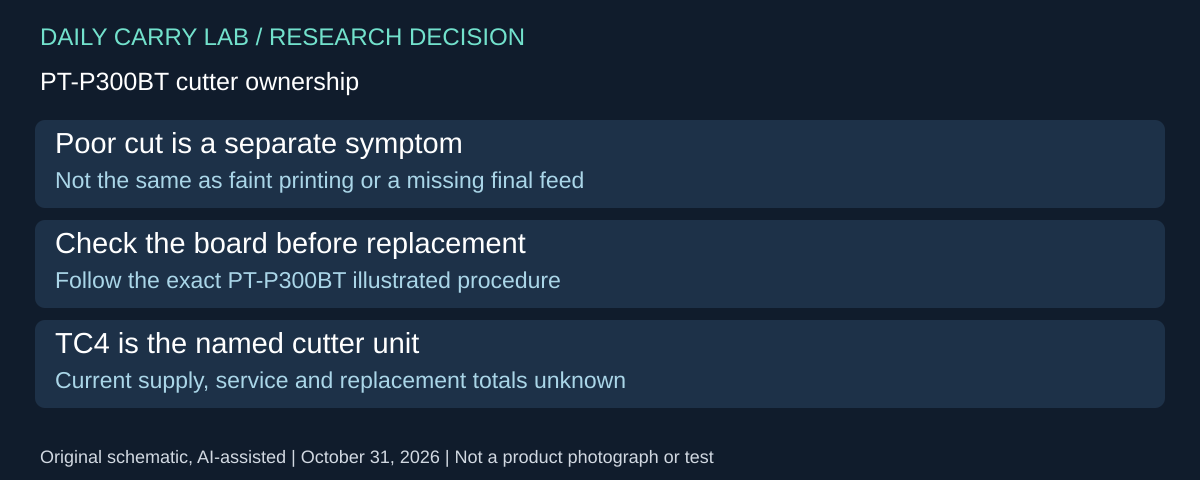
A worn CUBE cutter is a different replacement decision
A label that prints correctly but cuts poorly raises a different spending decision from faint text, failed pairing or the unfinished final feed above. Before replacing the white PT-P300BT, inspect Brother’s US guide, PDF page 7, Accessories, checked October 31, 2026. It describes a serviceable cutter arrangement rather than treating every poor cut as grounds to replace the printer.
| Decision | Documented distinction | Purchase consequence |
|---|---|---|
| Tape cuts poorly after use | Blade wear is a possible cause | A new tape roll is not automatically the relevant purchase |
| First cutter check | Rotate and reset the Cutter Board as illustrated | Follow the model instructions before ordering a part |
| Difficulty remains | Brother identifies replacement Cutter Unit TC4 | Verify exact compatibility and actual supply before paying |
| Comparing another printer | This procedure belongs to PT-P300BT | No H110 or CUBE Plus part compatibility is established |
Use the complete maintenance instructions and power precautions, keep fingers away from the cutting edge, and obtain Brother support if the procedure is unclear. We have not inspected your printer, performed this replacement or measured cut quality. The guide supplies an ownership option; it does not diagnose every jam or guarantee a successful repair.
Budget and drawback: current cutter, service and complete replacement-printer totals are unknown. Request those separately before deciding that another printer is economical. If the existing phone workflow and tape choice still fit, compare the documented maintenance route first. If those requirements have changed, return to the workflow table above; replacing a cutter cannot add a keyboard, wider tape support or a different app. Keep an occasional handwritten tag as a practical alternative while resolving the fault.
Check cassette loading before buying a replacement printer
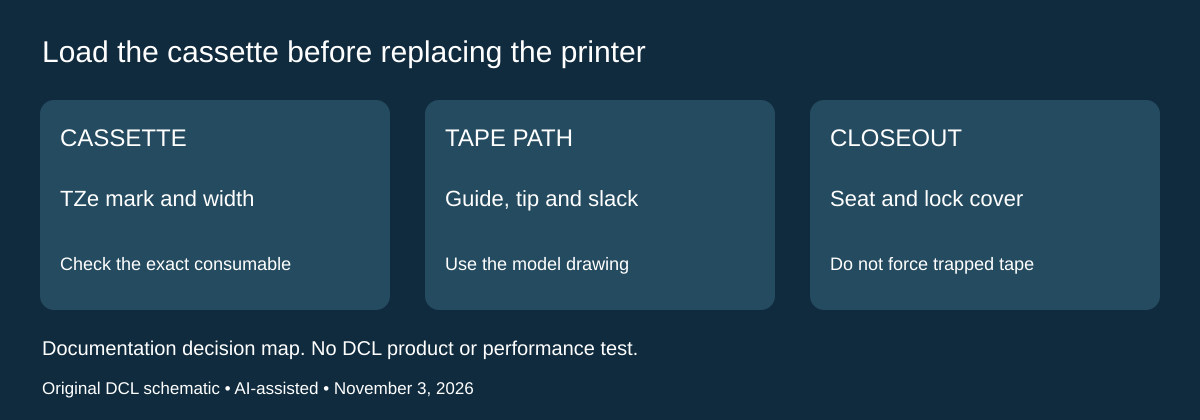
When a CUBE feeds poorly after a tape change, distinguish the cassette installation from the print-head and cutter checks above. Brother’s PT-P300BT US guide, PDF page 14, section 3, checked visually November 3, 2026, shows the tape path, cassette seating and cover hooks. That drawing provides a specific check before another printer or roll becomes the assumed solution.
| Installation check | Brother’s instruction | What it changes in the decision |
|---|---|---|
| Compatible cassette | TZe mark; 3.5, 6, 9 or 12mm width; remove a cassette stopper if present | A similar-looking cartridge is insufficient identity evidence |
| Tape path | Point the tape tip toward the exit; pass it under the guide and remove slack by pulling the tip | Check loading before attributing poor feeding to the motor |
| Seating and cover | Snap the cassette into place; fit the two rear cover hooks and close it until locked | A loose installation remains unresolved by buying more tape |
| Insertion or removal | Ensure the tape is not caught in the unit | Do not force the cover or a trapped tape path |
Follow the illustrated instructions for this exact PT-P300BT, rather than borrowing a different CUBE model’s mechanism. If the problem persists, consult Brother’s model-specific support. The documented loading sequence does not identify the cause of every jam or promise that an already damaged cassette can be recovered. We have not performed a jam-clearing or feed-reliability test.
For repeated travel labels, check a newly loaded cassette while you still have time and another way to identify the kit. That is DCL preparation advice. A successful print does not certify the label’s adhesion to a cable, surface or outdoor environment, and proper loading does not turn this manual cutter into an automatic one.
Budget and drawback: keep cassette fit, print quality, cutting and phone connection as separate checks before replacing hardware. Current cassette and printer totals are unknown; no saved-tape percentage or repair saving is asserted. A compatible existing roll may already meet the job if the supported loading procedure resolves the issue. If it does not, spending on an unverified alternative cartridge leaves both fit and fault unresolved. The US package and standalone H110 comparison above remain unchanged.
Shop the researched models
These Amazon links are affiliate links. Daily Carry Lab may earn a commission from qualifying purchases. Match the model and included contents to your needs; this guide is based on manufacturer-source research, without hands-on testing.
-
Brother P-touch CUBE PT-P300BT
White;US package with AC adapter/starter tape;notblueBU/Plus
Check Brother P-touch CUBE PT-P300BT, white, on Amazon
Sources and limits
This guide compares published specifications and source documentation. Daily Carry Lab has not performed hands-on tests of the products in this guide. Consult the dated sources and verify the exact model and current terms before buying.
Related guides
iPhone 18 Pro: Wrist Strap or Crossbody Strap, with the right case
Compare exact Apple Wrist and Crossbody strap packages for iPhone 18 Pro by attachment, length, complete cost and limitations.
Travel AA/AAA chargers: match the cells, slots and USB input
Compare four-slot AA/AAA charging systems by exact chemistry and USB input. Includes conditional XTAR BC4 research and explicit operating-manual limits.
USB-C bike front lights: compare modes, mounts and charging
Compare Lezyne Micro Drive 800+ and Fenix BC15R using exact modes, rated runtime, battery design and mounting limits, without road-certification claims.
Camera backpacks for travel: dividers, access and laptop fit
Compare Peak Design Everyday Backpack 20L v2 and Lowepro ProTactic BP 350 AW III by camera access, laptop clearance, weight and packed dimensions.