
By Daily Carry Lab. Primary documentation checked October 14, 2026 (Pacific).
Affiliate disclosure: As an Amazon Associate, Daily Carry Lab earns from qualifying purchases. Retailer links may earn a commission at no extra cost to you. Manufacturer links support the documented claims.
Research disclosure: We have not tested these products. Selection is based on primary documentation and the compatibility decisions below; no DCL ratings or measured performance are claimed.
Choose a travel action camera by the complete recording kit: mount, battery, storage and a way to get footage onto your phone or computer. GoPro HERO13 Black and DJI Osmo Action 5 Pro are documented options for different mounting and storage workflows. We selected them for their primary setup documentation, without ranking image quality, stabilization or low-light performance.
The retailer configurations reviewed here are the HERO13 Black Accessory Bundle and Osmo Action 5 Pro Standard Combo. The camera facts below refer to the camera models; included accessories must be checked against the exact bundle. Neither is presented as the newest camera or a universally best purchase.
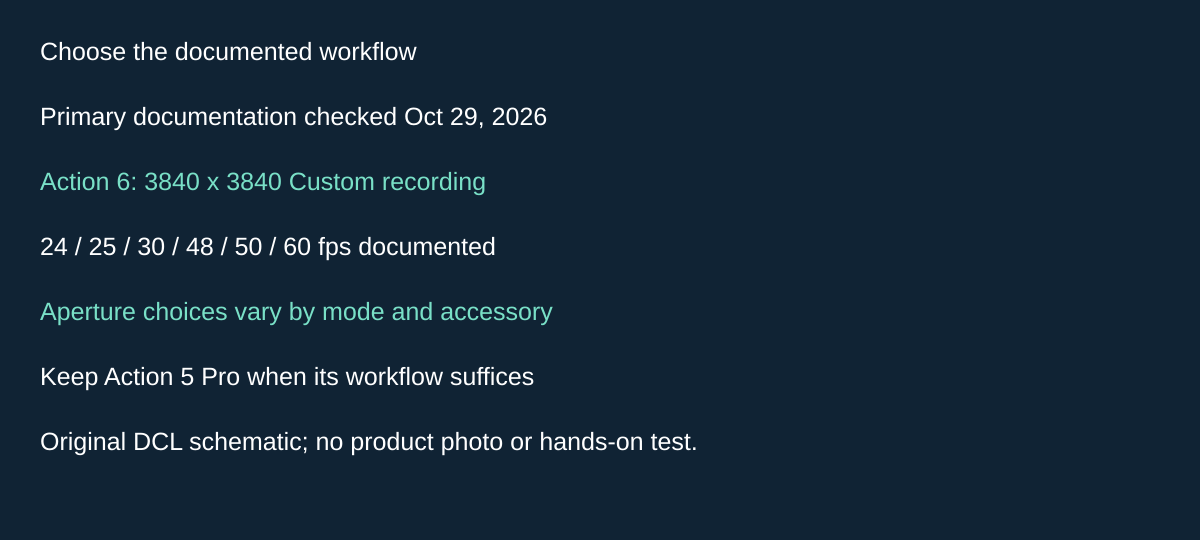
Original DCL research schematic, October 29, 2026; documented choices, not a product photograph or DCL test.
Add Action 6 when reframing and aperture choices justify a different workflow
A third candidate is DJI Osmo Action 6 when you want to frame once and choose different crops later. DJI’s specifications, checked October 29, 2026, list 4K Custom recording at 3840 × 3840, with 24, 25, 30, 48, 50 and 60fps options. We add it for that documented capture format and its aperture controls, without claiming superior image quality or a need to replace a working Action 5 Pro.
| Buying reason | Action 6 evidence | Workflow drawback |
|---|---|---|
| Prepare horizontal and vertical edits | Square 4K Custom capture | Editing and checking each crop still take work; usable output depends on composition |
| Choose aperture behavior | Variable f/2.0–f/4.0 lens | Available modes depend on shooting mode and attached accessories |
| Record without adding a card immediately | 50GB available internal storage in DJI specifications | Free space still needs checking; it is not a second copy |
| Keep an existing Action 5 Pro kit | Existing workflow documented above | Check exact accessory compatibility before assuming interchangeability |
Do not read the aperture range as unrestricted manual choice in every mode. DJI’s aperture-mode chart, English page 2, lists Auto, Fixed f/2.8 and Starburst f/4.0 for ordinary Video without accessories. Its no-accessory Timelapse row lists Fixed f/2.8 and Starburst f/4.0. The chart says the actual camera interface takes precedence and modes may change with firmware. The FAQ also directs buyers to this mode-specific table.
For selection, decide whether the final files need multiple crops or whether your present recording mode already meets the job. Our suggested check is to make a disposable sample, export the desired crops in your editor and inspect framing and playback on the destination device. A square source does not guarantee that a subject near its edge survives every crop. This is editing advice, not a DCL quality test.
Budget and drawbacks: camera, accessory, storage and software totals are unknown. Action 6 remains source-only here; neither its regional package nor a retailer offer has been verified. Macro and FOV accessories need their own inclusion and compatibility checks. We have not tested aperture transitions, reframing, stabilization or editor support. Keep the exact Action 5 Pro and HERO13 bundle evidence above separate from this newly documented camera.
Match the mount before recording
GoPro documents built-in mounting fingers and 1/4-20 tripod threads on HERO13 Black, plus support for a magnetic latch accessory. Having a latch connection point does not establish that your selected bundle includes that accessory. Inspect what is supplied and check the mounting interface of the support you already own. HERO13 Black manufacturer page.
DJI’s manual says the quick-release adapter clips must be firmly inserted into the camera’s slots, with locking screws tightened. It also gives specific clean-surface and application instructions for an adhesive base. Do not treat a magnetic attachment or sticky pad as proof that an improvised surface is suitable. Follow the manufacturer procedure before exposing a camera to movement. Action 5 Pro manual, mounting section.
| Your intended setup | Compatibility check | Drawback to plan for |
|---|---|---|
| Existing GoPro-style accessories | Exact fitting and fastening instructions | Camera compatibility does not establish safe attachment to every surface |
| Small tripod | Correct interface, adapter and support instructions | A matching screw does not establish adequate support |
| Adhesive action mount | Approved surface, preparation and setting instructions | Dust, oil, moisture and surface shape can undermine attachment |
| Quick-release camera swap | Both camera and adapter generation | A similar-looking latch may be incompatible |
Water use needs the doors and lens secured
GoPro markets HERO13 Black as waterproof to 33 ft, approximately 10 m, without an added housing. DJI specifies 20 m without its waterproof case and 60 m with it. These are manufacturer limits, rather than our pressure tests. The bigger depth number does not answer whether a particular long-duration or high-impact activity is appropriate. GoPro manufacturer page, DJI specifications.
DJI requires closing the battery and USB-C covers and tightening the glass lens cover before underwater use. It recommends the waterproof case for long-duration underwater shooting or high water impact pressure, and excludes hot springs or extreme/unknown liquids. Its manual provides the cleaning and drying procedure. An open charging port changes the situation: do not transfer a closed-camera depth rating to a camera connected to a cable. Follow the exact configuration’s instructions.
Battery identity matters more than one headline runtime
HERO13 Black uses a 1900 mAh Enduro battery with a connector specific to this model; GoPro says it is incompatible with older GoPros. Keep the generation explicit when adding a spare. We do not compare GoPro’s headline runtime with DJI’s different test setup as if they measured the same recording session. GoPro battery documentation.
Action 5 Pro specifies a 1950 mAh, 7.5 Wh battery. Its 240-minute rating uses 1080p/24 fps at 25°C, RockSteady on, Wi-Fi off and screens off. That cannot establish four hours while shooting a different mode, browsing footage or transferring files. DJI recommends a USB-C charger supporting PD or PPS; charge and dry the equipment according to its manual. DJI specifications, DJI charging instructions.
Pack charging around actual shooting breaks and file transfer. A spare battery helps only if it is the correct generation, charged and usable when you need it. A generic adapter wattage does not establish a camera’s charging rate.
Buy storage for the recording mode
GoPro specifies a microSD card rated V30 or UHS-3. DJI supports microSD up to 1 TB and publishes a recommended-card list; Action 5 Pro also has 64 GB built in, with 47 GB available for use. Read those as separate facts: nominal memory is not the same as available recording space. GoPro card requirement, DJI storage specifications.
We do not recommend a separate card SKU here. Check the current manufacturer list for your exact camera and capacity rather than infer suitability from a capacity number or packaging saying “fast.” Format and verify the actual card in the camera, then make and play back a short recording before the trip. An included card is not evidence that every similarly branded card or capacity is compatible.
Confirm your phone-transfer path
DJI documents previewing and downloading files through DJI Mimo. For computer transfer, select Transfer File: USB when connected; the manual says recording is unavailable during that transfer. Its wired phone method requires a mobile device supporting OTG and the specified USB mode. DJI transfer instructions.
GoPro documents transfer/editing through Quik and separately qualifies its auto-upload-to-cloud feature with a GoPro subscription and a home Wi-Fi network. Cloud access is not an automatic offline backup. Check the actual phone, app and transfer method before departure; enough camera storage is not enough phone storage. GoPro transfer and cloud notes.
For a computer-based kit, compare the SD reader workflow and travel SSD backup plan. Keep another verified copy before deleting a camera card.
| Exact configuration | Budget status checked October 14, 2026 | Useful fit | Drawback |
|---|---|---|---|
| HERO13 Black Accessory Bundle | Current checkout total unknown; no price ceiling | Reviewed listing includes two Enduro batteries, grip, carrying case and 64 GB card | Bundle contents add carry space; no magnetic latch inclusion established |
| Osmo Action 5 Pro Standard Combo | Current checkout total unknown; no price ceiling | Documented built-in storage plus reviewed quick-release/frame kit | One supplied battery; conditions constrain depth and runtime |
| Keep a suitable camera you own | No new camera cost if its recording workflow works | Test mount, battery, card and transfer first | Older batteries/accessories may not match a new generation |
Retailer identities checked October 14: B0DFJ2V9MM for the HERO13 Accessory Bundle and B0DBQTC2P7 for Action 5 Pro Standard Combo. Other HERO13 listings returned conflicting color text and were excluded from the mapping. Choose a complete kit that records and transfers on your equipment, with the bundle verified again at checkout.
An Action 5 Pro can also fill a computer-webcam role
If you already plan to carry an Osmo Action 5 Pro, check its documented webcam mode before adding a separate call camera to the bag. DJI’s v1.0 manual, section 4.10, printed page 25, checked October 22, 2026, describes turning the camera on, connecting it to a computer by USB and selecting Webcam on its screen. Merely connecting USB does not select the intended role.
| Intended USB job | What the manual establishes | What still needs checking |
|---|---|---|
| Use it as a computer camera | Select Webcam after entering USB mode | Actual computer, meeting app and camera selection |
| Adjust the webcam picture | Exposure, white balance and field-of-view controls are available in this mode | Whether the resulting framing suits your room |
| Record while in webcam mode | Shutter/Record starts recording | Storage, session duration and your actual setup |
| Review that recording | Preview recorded videos after leaving webcam mode | Time to exit the call workflow before reviewing |
Do not transfer the guide’s separate file-transfer restriction into this mode: DJI explicitly describes recording in webcam mode. Conversely, its recording-mode resolution and battery headlines above do not establish the resolution, frame rate or endurance of a computer call. This manual section also does not establish which microphone your meeting app will select or whether every external-microphone arrangement passes audio to it.
Our preparation advice is to verify a short call using the computer, data cable, support and audio input you will actually carry. Position the camera on a suitable stable mount and check framing and cable clearance. The camera’s USB port is exposed in this wired arrangement, so its closed-camera underwater depth rating does not apply to this setup.
Keeping one camera for both jobs may reduce the number of devices packed; it does not guarantee better call quality or a lower complete-kit total. Extra support or cables may still be needed, with current prices unknown. We have not tested webcam output, simultaneous recording or meeting compatibility. This section establishes the Action 5 Pro option only, not equivalent behavior on HERO13 Black.
Choose between saving the lead-up and overwriting older footage
If the buying reason is an unpredictable moment, decide what must survive before selecting a recording feature. The Osmo Action 5 Pro v1.0 manual, rechecked October 24, 2026, documents Pre-Rec and Loop Recording in Video and SuperNight modes. These address different storage decisions.
With Pre-Rec enabled, DJI says the camera retains footage for the selected preceding duration. Pressing Shutter/Record saves that lead-up and continues recording into one video. Loop Recording instead replaces older footage with new footage at the selected intervals. It is unsuitable as an assumption that all earlier events remain stored.
| What needs preserving | Feature to evaluate | Constraint |
|---|---|---|
| Short lead-up before you react | Pre-Rec | Enable and configure it before the event |
| Recent footage during a long wait | Loop Recording | Older footage is overwritten |
| Complete uninterrupted history | Verify a suitable ordinary recording workflow | Do not rely on a rolling loop for full retention |
| An important saved moment | Copy it through the documented transfer path | Recording a clip does not create a second copy |
Before a trip, make an unimportant sample in the intended mode, trigger the save and inspect the resulting file. Decide whether the preserved lead-up answers your need. Do this before using a card containing material you need to keep. This is a suggested owner check; we have not verified buffer length options, firmware differences or simultaneous feature combinations.
Budget and drawback: choose capacity and a backup workflow around what you must retain. A larger card does not reverse a loop’s overwrite behavior. Extra card, reader and storage totals remain unknown. Do not apply the 240-minute laboratory runtime above to a pre-record session: this manual passage gives no matching endurance result. We have not tested recording gaps, overwrite recovery or event capture. The documented option belongs to Action 5 Pro; it does not establish a corresponding HERO13 mode.
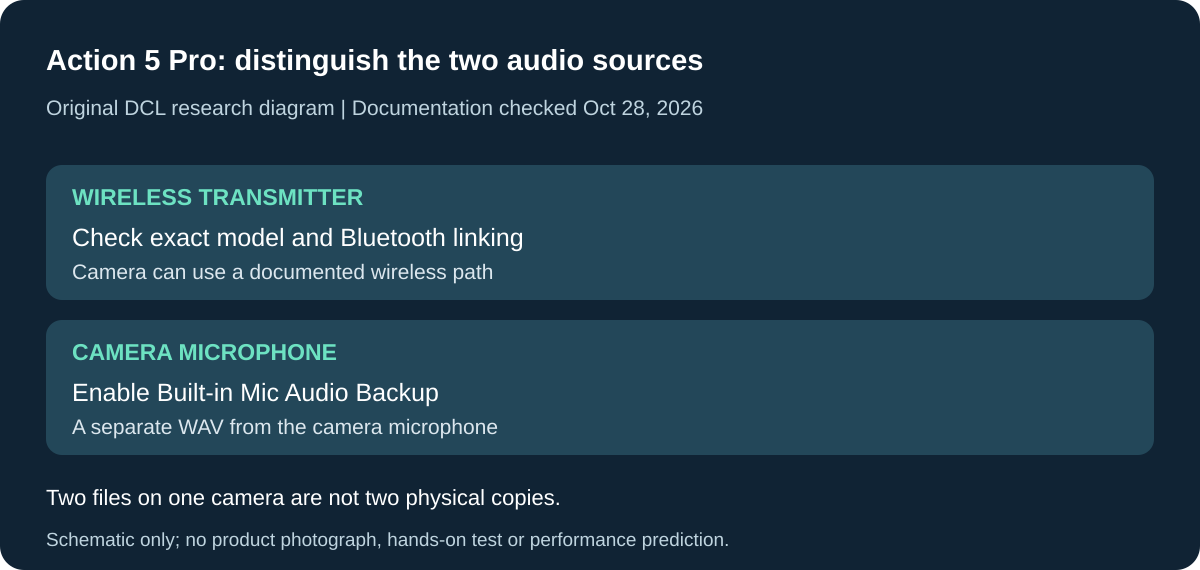
Original DCL research schematic, October 28, 2026. Documented boundaries, not a product photograph or DCL test; see the cited manual and qualifications below.
Choose the microphone connection and backup file together
For Action 5 Pro, a receiver is not automatically required for every documented wireless-microphone arrangement. DJI’s v1.0 manual, section 4.9, printed pages 24–25, checked October 28, 2026, documents linking two DJI wireless microphones simultaneously by Bluetooth. The microphone’s own exact compatibility and linking instructions still matter. The general phrase does not approve every DJI generation or a third-party Bluetooth microphone.
| Recording requirement | Documented camera function | What to verify before buying |
|---|---|---|
| Link a supported transmitter without a separate receiver path | Camera Wireless Microphone settings and Bluetooth linking | Exact transmitter model and its current instructions |
| Start camera recording from the linked transmitter | Linked transmitter can control recording while its audio is captured | The actual transmitter’s control and recording workflow |
| Keep camera-microphone audio separately | Enable Built-in Mic Audio Backup; camera saves a separate .wav file while shooting video | Setting enabled and the resulting file available in your transfer workflow |
| Protect an important session | Copy and check the files after capture | An extra file on the same camera is not a second physical copy |
The backup setting specifically records the camera’s built-in microphone. It does not establish that the wireless transmitter records internally, that the separate file is identical to the wireless audio, or that a damaged take can always be repaired. Decide whether camera-position audio would be useful for your job before treating that feature as the reason to choose the system. We have not measured intelligibility, synchronization, dropout recovery or how the files appear in an editing application.
Before adding a receiver or another transmitter to the kit, list the exact camera, transmitter, link method and files you need to retain. Check the microphone manual that DJI directs you to, and make a short disposable recording with the intended setup. Inspect both the video and the separate audio file. This is a proposed owner check, not a DCL recording test.
Budget and drawback: this camera-side path may change which components you investigate, but no receiver-free bundle, microphone SKU or current accessory price is approved here. Complete totals are unknown. Keep the existing camera power, mounting and storage decisions. The documented option belongs to Action 5 Pro; it does not establish equivalent HERO13 Black behavior or universal Bluetooth audio input.
Choose stabilization and gyro-data needs before the recording mode
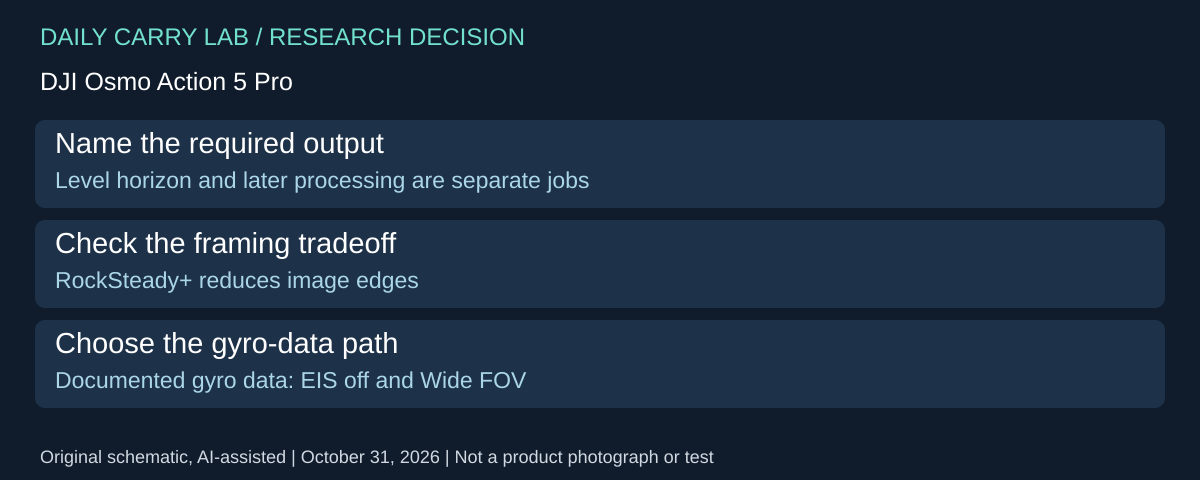
For Action 5 Pro, a level horizon and a file prepared for later gyro-based work are different requirements. DJI’s v1.0 manual, printed pages 20–21, checked October 31, 2026, documents the electronic image stabilization choices and a separate gyro-data condition. The useful purchase question is which output your editing workflow requires.
| Requirement | Documented option or condition | Drawback to evaluate |
|---|---|---|
| Largest field of view | Disable EIS | No stabilization benefit is established by that selection |
| Stronger stabilization than RockSteady | RockSteady+ reduces the image edges slightly | Framing changes; no numeric crop measurement here |
| Compensate horizon movement within ±45° | HorizonBalancing | Not the same rotation scope as HorizonSteady |
| Leveled horizon through horizontal rotation | HorizonSteady describes 360° correction | Verify availability in the intended recording setup |
| Record video with gyro data | Disable EIS and set field of view to Wide | Do not assume the same setup also delivers in-camera EIS |
The manual places EIS selection under Video and SuperNight parameters and warns that settings vary by shooting mode. This passage does not establish every resolution/frame-rate combination, compatibility with a named editor, or a guaranteed stabilization result. Obtain the exact mode support needed before buying around it.
Our preparation advice is to choose a disposable representative scene, including edges that must remain visible, and compare the resulting framing and files through your intended workflow. If later processing is essential, verify that the application accepts the camera’s actual file and required data before a trip. DCL has not recorded samples, checked metadata or measured stabilization.
Budget and drawback: software, mounts and complete-kit costs remain unknown. A stabilization feature may change framing or recording setup without requiring another camera; an editing requirement may add dependencies beyond the camera purchase. Keep the existing storage and transfer plan. This Action 5 Pro evidence does not approve equivalent HERO13 behavior, a particular third-party workflow or a simultaneous feature combination.
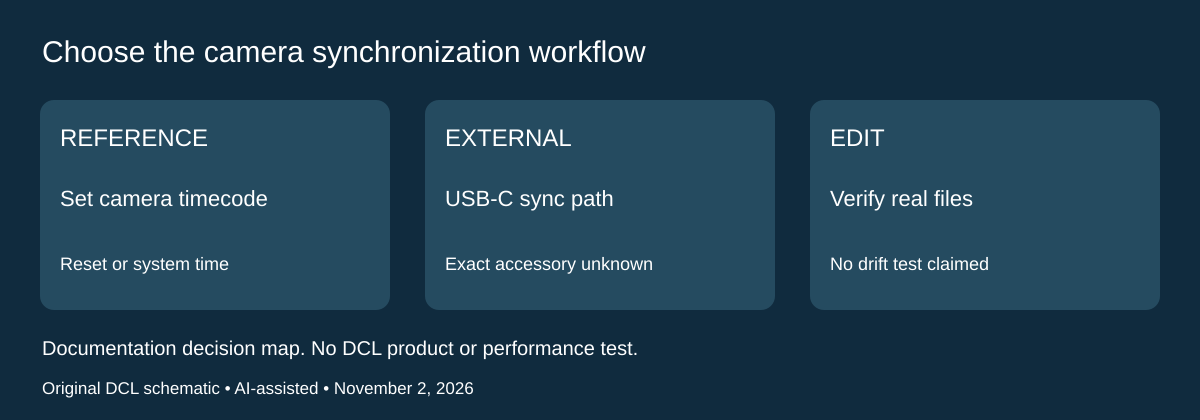
Action 5 Pro: establish timecode support before buying a multicamera kit
Research checked November 2, 2026. If the action camera will join another camera in the same edit, choose the synchronization workflow as well as mounts and storage. DJI’s Action 5 Pro v1.0 manual, printed page 22, documents Timecode in the control menu. It offers reset or synchronization with system time, a USB-C timecode-synchronizer path, and live-view timecode display.
| Intended workflow | Documented camera option | Evidence still needed before buying |
|---|---|---|
| Establish a camera timecode reference | Reset or sync with system time | Whether the rest of the camera/editing workflow uses that reference |
| Use an external timecode device | Synchronization through USB-C is documented | Exact synchronizer, cable and setup compatibility |
| See the camera’s current timecode | Enable Timecode Display | A visible counter is not proof that separate cameras agree |
| Find selected moments later | Manual’s Highlight section allows markers during playback; visible in DJI Mimo | Whether the intended editing workflow retains or uses those markers |
Do not interpret the USB-C statement as a list of approved accessories. The cited passage does not identify a compatible synchronizer model, promise continuous synchronization, specify drift, or establish simultaneous use of USB audio, charging and timecode. Those unanswered questions matter when the complete kit depends on one connector doing several jobs.
The practical buying check is to list every camera, required file and intended editor. Obtain exact accessory documentation and check a disposable representative set of files through that workflow before relying on it for an event. DJI’s camera setting alone does not prove that a named editor will import, align or retain the relevant metadata. DCL has not tested timing, file interoperability or synchronization accuracy.
Budget and drawback: current synchronizer, cable and software totals are unknown. If simple manual alignment already serves the project, another timing accessory may add unnecessary cost and packing complexity. If precise synchronization is essential, hold that accessory decision until exact support is established. This section adds a documented Action 5 Pro decision boundary; it does not certify a complete multicamera package or equivalent HERO13 or Action 6 behavior.
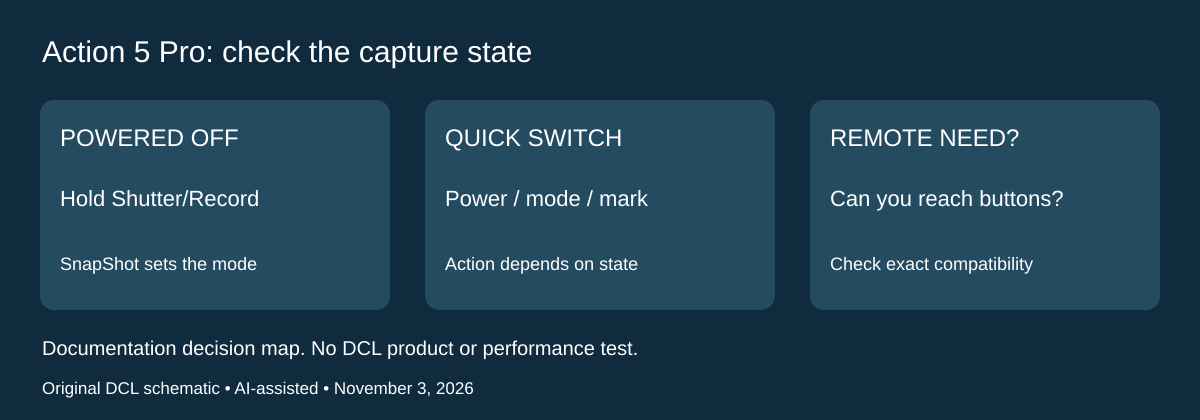
Action 5 Pro: check capture from power-off before adding a remote
Research checked November 3, 2026. A mount that makes the screen hard to see changes how you operate the camera. Before buying an extra remote for a simple capture routine, check the Osmo Action 5 Pro controls in its v1.0 manual, printed pages 17 and 22. The shutter button’s power-off action and the separate Quick Switch button do different jobs.
| Intended action | Documented Action 5 Pro behavior | Preparation or drawback |
|---|---|---|
| Begin shooting while powered off | Hold Shutter/Record to power on and begin shooting | Shooting mode depends on SnapShot settings |
| End the short off-state capture workflow | After shooting, camera powers off if idle for three seconds | Do not assume it remains ready with the display on |
| Change mode while operating the camera | Quick Switch cycles configured shooting modes | Select the accessible modes in the control menu first |
| Identify the switched mode without viewing the screen | Optional Voice Prompt announces the shooting mode | Audibility in your actual setting is untested |
The manual separately describes holding Quick Switch to turn power on or off. While video or slow-motion recording is already running, pressing that button marks a highlight; it is not the same action as starting from power-off. This distinction can prevent choosing an accessory on the mistaken assumption that a button always performs one task. Exact settings and the camera’s current state govern the workflow.
Our buying advice is to assess where the camera and your hand will be in the planned setup. If direct button access is practical and the documented routine meets the job, an additional control device may be unnecessary. If you must operate from a different position, establish the remote’s exact compatibility and controls before selecting it; the camera button instructions do not certify a remote or prove it is included in a bundle.
Before departure, rehearse the complete sequence with a disposable clip in a suitable stationary setup: select the intended settings, start from the intended power state, stop and inspect the file. We have not measured startup delay, accidental activation, voice-prompt audibility, missed moments or battery savings. A quick-start description is not a guaranteed response time. Follow the earlier mounting requirements and keep the card and battery checks separate.
Budget and drawback: camera, remote and mounting totals remain unknown. Avoid adding an accessory until its operating need is clear, but do not treat direct controls as a substitute when you cannot reach them. These procedures belong to Action 5 Pro v1.0 documentation; they are not verified Action 6 or HERO13 Black controls.
Shop the researched models
These Amazon links are affiliate links. Daily Carry Lab may earn a commission from qualifying purchases. Match the model and included contents to your needs; this guide is based on manufacturer-source research, without hands-on testing.
-
GoPro HERO13 Black Accessory Bundle (2 batteries, grip, case, 64GB card)
Check GoPro HERO13 Black Accessory Bundle (2 batteries, grip, case, 64GB card) on Amazon -
DJI Osmo Action 5 Pro Standard Combo
Check DJI Osmo Action 5 Pro Standard Combo on Amazon
Sources and limits
This guide compares published specifications and source documentation. Daily Carry Lab has not performed hands-on tests of the products in this guide. Consult the dated sources and verify the exact model and current terms before buying.
- gopro primary documentation
- action-spec primary documentation
- action-manual primary documentation
- October 29 editorial-action-camera primary documentation
- October 29 editorial-action-camera primary documentation
- October 29 editorial-action-camera primary documentation
- DJI OsmoAction5Pro v1.0 manual printed22 Timecode/Highlight
- Printed17 Button Features and printed22 Quick Switch / Voice Prompt
Related guides
iPhone 18 Pro: Wrist Strap or Crossbody Strap, with the right case
Compare exact Apple Wrist and Crossbody strap packages for iPhone 18 Pro by attachment, length, complete cost and limitations.
Portable label makers: choose phone control or a built-in keyboard
Compare Brother PT-P300BT CUBE and PT-H110 by phone dependence, TZe tape widths, power and cable-label workflow.
Travel AA/AAA chargers: match the cells, slots and USB input
Compare four-slot AA/AAA charging systems by exact chemistry and USB input. Includes conditional XTAR BC4 research and explicit operating-manual limits.
USB-C bike front lights: compare modes, mounts and charging
Compare Lezyne Micro Drive 800+ and Fenix BC15R using exact modes, rated runtime, battery design and mounting limits, without road-certification claims.